
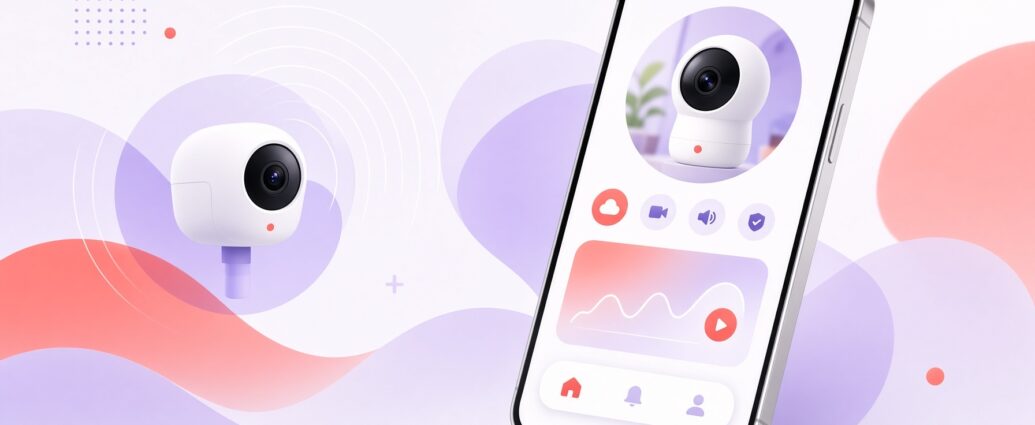
The November 25 Google Home update introduces practical tools that fit cleanly into daily technical workflows. These include remote 30-second security siren controls on supported Nest Cam Outdoor (wired, 2nd gen) and compatible Onn cameras, improved video history playback with better landscape controls on Android, multi-admin feedback improvements, and Gemini for Home enhancements such as faster smart home commands with contextual follow-ups plus adaptive storytelling and visible sources on smart displays. This guide shows how to put these features to work for reliable monitoring, rapid response, and natural language control without treating them as isolated app novelties.
What You Need
- Google Home app updated to the latest version on Android or iOS (the November 25 features roll out through the app and server-side Gemini changes)
- Supported camera: Nest Cam Outdoor (wired, 2nd gen), onn Outdoor Camera Plug-In, or onn Floodlight Camera Hardwired for the siren; other Nest Cams benefit from playback and landscape improvements
- Google account with admin access to the home; multi-admin homes gain clearer feedback
- Optional but recommended: Google Home Premium (Advanced) for Familiar Faces on Onn cameras and richer Gemini camera descriptions
- Compatible speaker or smart display for Gemini commands and source viewing
- Stable Wi-Fi and internet for live view, history, and voice features
Step-by-Step Guide
Step 1: Update the Google Home app and confirm feature availability
Open the Google Play Store or App Store and update the Google Home app. Force-close and reopen the app after updating so server-side changes for Gemini and camera controls load fully.
Go to your home, open a supported outdoor camera, and start a live view. Look for the new siren control while the feed is active. If it does not appear immediately, wait a few hours for the rollout to reach your account and try again after restarting the app.
Step 2: Activate and stop the 30-second security siren from live view
The remote siren gives a clear, time-limited audible alert without needing a separate physical trigger. While watching the live feed of a Nest Cam Outdoor (wired, 2nd gen), onn Outdoor Camera, or onn Floodlight Camera, locate the siren control in the live-view interface.
Tap to start the 30-second security siren. The same control lets you stop it early if the situation resolves. This is useful for quick deterrence during a remote check or while coordinating with someone on site.
Important:The siren is loud and intended for security use. Test it at a low-traffic time so household members know the sound.
Step 3: Use improved video history playback and landscape controls
Open the camera’s history timeline in the Google Home app. Playback is smoother, and Android landscape mode now keeps controls clearer and better positioned (especially useful on phones with punch-hole cameras).
Scrub or select events, then switch to landscape for a wider view of the footage. Multi-admin homes receive clearer feedback on shared clips, reducing confusion when several people review the same events.
Step 4: Enable and practice Gemini contextual smart home commands
Make sure Gemini for Home is active (early access or general rollout depending on your region). On a speaker or display, issue a clear command such as turning off a group of lights. Immediately follow up with a contextual phrase like “turn them back on.” Gemini retains the context so you do not need to restate the devices.
Commands are faster overall. Practice short sequences: turn devices off, confirm status, then reverse or adjust. This reduces friction in routines that previously required repeated full commands.
Step 5: Try adaptive storytelling and view Gemini sources
Say “Hey Google, tell me a story” and then interrupt or adjust mid-way (for example, “make the character more careful” or “add a technical problem to solve”). Gemini adapts the continuing story based on your input.
On a smart display, ask a factual question. Sources used for the answer now appear on screen, letting you verify information quickly without leaving the device. This is helpful when you want a quick reference while working.
Step 6: Incorporate the features into a simple daily check workflow
Create a short morning or evening routine: open the Google Home app, review overnight camera history with the improved playback, glance at any multi-admin notes, then use a live view plus siren test only if needed. Follow with a Gemini voice command sequence that sets the day’s lights, temperature, or other devices using contextual follow-ups.
Document the exact phrases that work best for your devices so the workflow stays consistent across days.
Professional Tips
For developers and advanced users, treat these features as building blocks rather than one-off tools.
- Use the improved multi-admin feedback to assign review ownership. One admin handles security events while another logs technical issues visible on cameras (equipment status, lighting failures, etc.).
- Combine the remote siren with existing Google Home automations. Trigger a notification that prompts a live-view check; the person responding can then sound the siren from the same screen if required.
- Leverage Gemini’s natural-language automation creation. In the app, use “Help me create” with a prompt that references camera events (for example, when a specific outdoor camera detects activity at night, adjust lights and prepare a siren-ready state). Test the resulting automation thoroughly.
- On smart displays, make source viewing part of verification steps when Gemini answers technical or operational questions during a workflow.
- If you integrate Google Home with external agents via Home MCP, the faster contextual commands and richer camera history become useful data points the agent can reference for summaries or alerts.
- Standardize device names and room groupings so contextual follow-ups remain reliable. Ambiguous names reduce the effectiveness of “turn them back on” style commands.
Document successful command patterns and automation recipes in a shared note or repository so the workflow survives team changes or device additions.
Common Mistakes
- Expecting the siren on unsupported cameras—only Nest Cam Outdoor (wired, 2nd gen) and the listed Onn models currently offer the remote 30-second control.
- Skipping the app update or force-close, so the new controls never appear in live view.
- Using overly vague follow-up phrases with Gemini. Context works best when the prior command clearly identified the devices or group.
- Testing the siren without warning household members or neighbors, creating unnecessary alarm.
- Ignoring multi-admin feedback improvements and continuing to rely on external chat for clip review, which loses the in-app context.
- Assuming all Gemini features are available everywhere immediately; early-access elements and regional rollouts can lag.
- Forgetting that some advanced camera descriptions and Familiar Faces on Onn cameras require Google Home Premium.
Troubleshooting
If the siren control is missing from live view, confirm the camera model, update the app again, and restart the phone. Check that the camera is online and you have admin permissions.
When contextual follow-ups fail, restate the devices once clearly, then try the short follow-up. Restart the speaker or display if responses feel slow. Verify Gemini for Home is enabled for the home in app settings.
Playback or landscape issues on Android usually clear after the app update and a device restart. For multi-admin feedback problems, confirm all admins are on the latest app version.
Warning:Do not rely on the siren as the sole security measure. It is a short deterrent; pair it with monitoring and other response steps.
Final Check
- Google Home app is current and live view shows the siren control on a supported camera.
- You can start and stop the 30-second siren successfully.
- Video history plays smoothly and landscape controls are usable on Android.
- A contextual Gemini command sequence (“turn off the lights” followed by “turn them back on”) works.
- Adaptive story adjustment and source viewing function on your display.
- A short daily check routine is written down and tested once.
Summary
You now have a practical path to fold the November 25 Google Home update’s Nest Cam siren, improved playback and landscape controls, multi-admin feedback, and Gemini contextual commands plus adaptive stories and sources into a repeatable technical workflow. Beginners can follow the steps for reliable monitoring and faster voice control; professionals can extend them with automations, standardized commands, and multi-admin processes.
Next steps: run the daily check for a week and note any friction. Refine device names and automation prompts. Explore Google Home Premium if you need Familiar Faces or richer descriptions. Keep the app updated so later incremental improvements continue to strengthen the same workflow.